Canvas Integration
Prerequisites
This guide assumes you've completed the Quick Start and have a working summon config check.
Every summon-claude session gets a persistent markdown canvas — a dedicated tab in its Slack channel that Claude can read and write. Unlike the message thread (which can be compacted away), the canvas survives conversation history changes and gives Claude a place to store structured notes, status, and work output.
How canvases work
When a session authenticates to a Slack channel, summon-claude creates (or finds) a canvas for that channel. The canvas lives as a tab in the channel, visible to anyone in the workspace.
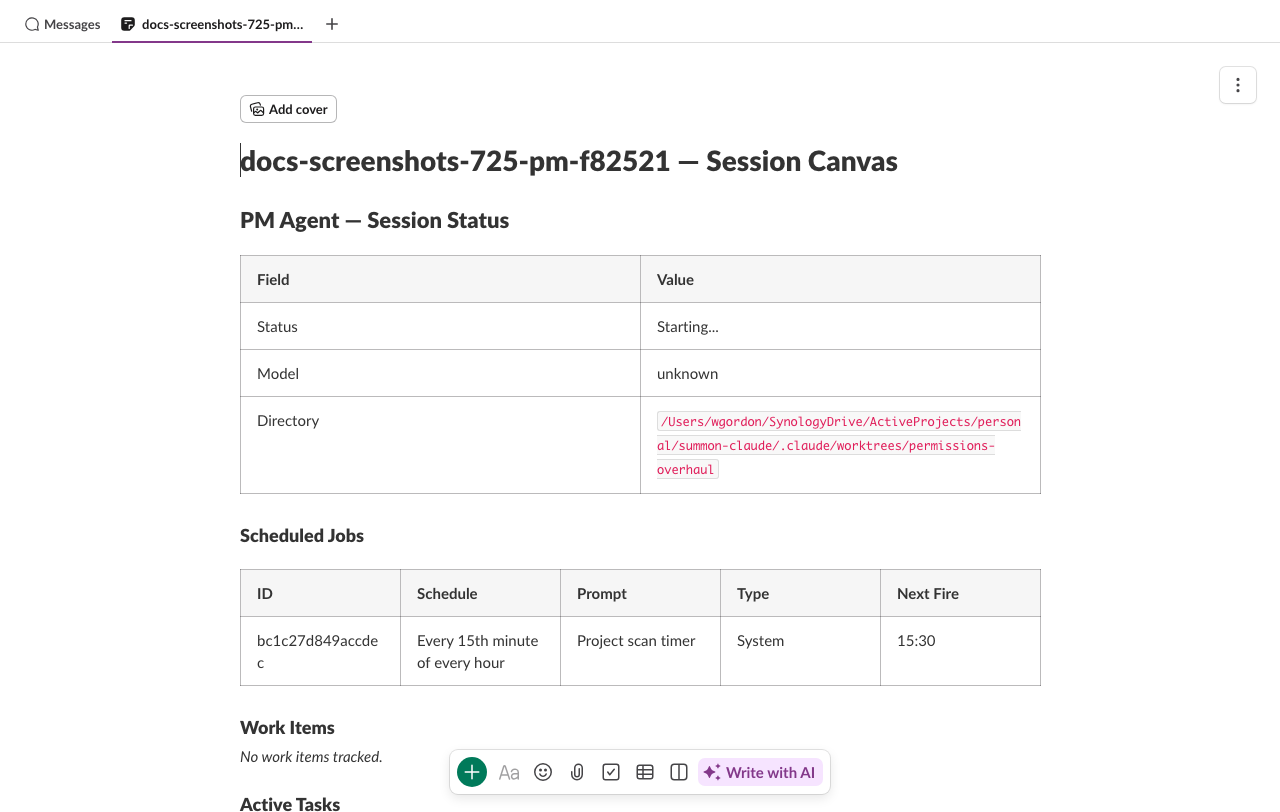
All canvas state is stored locally in SQLite first. A background worker syncs the local state to Slack on a 2-second dirty delay, then again on a 60-second heartbeat interval. This means:
- Claude's canvas writes are instant locally
- Slack reflects changes within a few seconds
- If Slack is temporarily unreachable, changes queue and sync when connectivity returns
Free plan limitation
Slack free plans allow one canvas per channel. summon-claude respects this — if a canvas already exists for a channel, it reuses it rather than trying to create a second one.
Canvas templates
summon-claude ships templates for each agent profile. The template chosen depends on what kind of session is starting.
Standard agent canvas
Used for regular summon start sessions:
- Session Info — name, model, start time
- Current Task — what Claude is working on right now
- Notes — free-form markdown for Claude to accumulate context
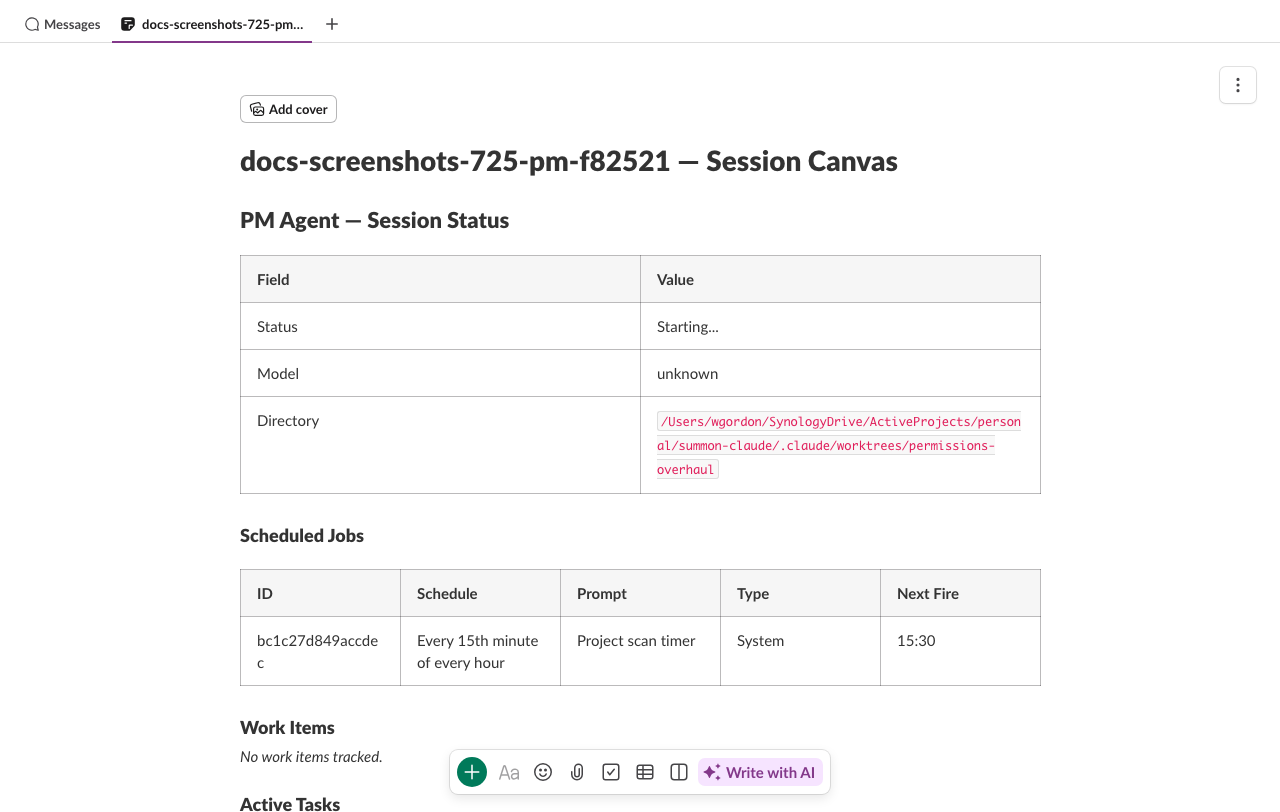
PM agent canvas
Used for PM sessions (started via summon project up):
- Project — project name and description
- Active Work — table of current child sessions with status and task
- Completed Work — summary of finished sessions
- Notes — PM-level notes and decisions
Global PM canvas
Used for a top-level PM coordinating multiple projects.
Scribe canvas
Used for the scribe monitoring agent:
- Recent Signals — items from the latest scan
- Active Items — ongoing events and threads
- Suppressed — items seen but filtered below importance threshold
MCP tools
Claude can interact with canvases through three MCP tools. These tools are available in all sessions that have a canvas — not just PM sessions.
summon_canvas_read
Read the current canvas markdown:
summon_canvas_read()
# Returns the full canvas markdown for the current session's channel

summon_canvas_read(channel="C01234567")
# Read another session's canvas (cross-channel access)
Cross-channel access: Claude can read canvases from other sessions in the same workspace, subject to a scope guard. The scope guard verifies that the requesting user authenticated both sessions (via authenticated_user_id) — Claude cannot read canvases belonging to other users' sessions.
summon_canvas_write
Replace the entire canvas with new markdown:
summon_canvas_write(markdown="# My Notes\n\nUpdated content here...")
Limits:
- Maximum 100,000 characters
- Whitespace-only content is rejected
- Replaces the full canvas body — use
summon_canvas_update_sectionfor partial updates
summon_canvas_update_section
Update a single named section within the canvas:
summon_canvas_update_section(
  heading="Current Task",
  content="Refactoring the auth middleware — see PR #142"
)
The heading parameter is the section heading text (without # characters). summon-claude finds the section with that heading and replaces its content. If the section does not exist, it is created as a new ## section at the end of the canvas.
Limits:
- Maximum 100,000 characters for the full canvas after update
- The
headingparameter must not be empty or consist only of#characters
This is the preferred tool for structured updates — the PM agent uses it to update the Active Work table without touching other sections of the canvas.
Sync behavior
| Event | When it happens |
|---|---|
| Write via MCP tool | Stored in SQLite immediately |
| First Slack sync | Within 2 seconds of the write (dirty delay) |
| Subsequent syncs | Every 60 seconds (heartbeat) |
| Sync failure | Backs off to 300-second intervals after 3 consecutive failures |
| Sync recovery | Resets to 60-second interval on next success |
If sync fails repeatedly, summon-claude logs an error. The local canvas state is never lost — it syncs as soon as connectivity is restored.
Viewing the canvas
The canvas is always visible as a tab in the Slack channel. You can also ask Claude to read and summarize it at any time:
What's on our canvas right now?
Or read it directly in Slack by clicking the canvas tab in the channel header.